
Why organize AI content production in a spreadsheet?
Generating one image for a product is often just the beginning.
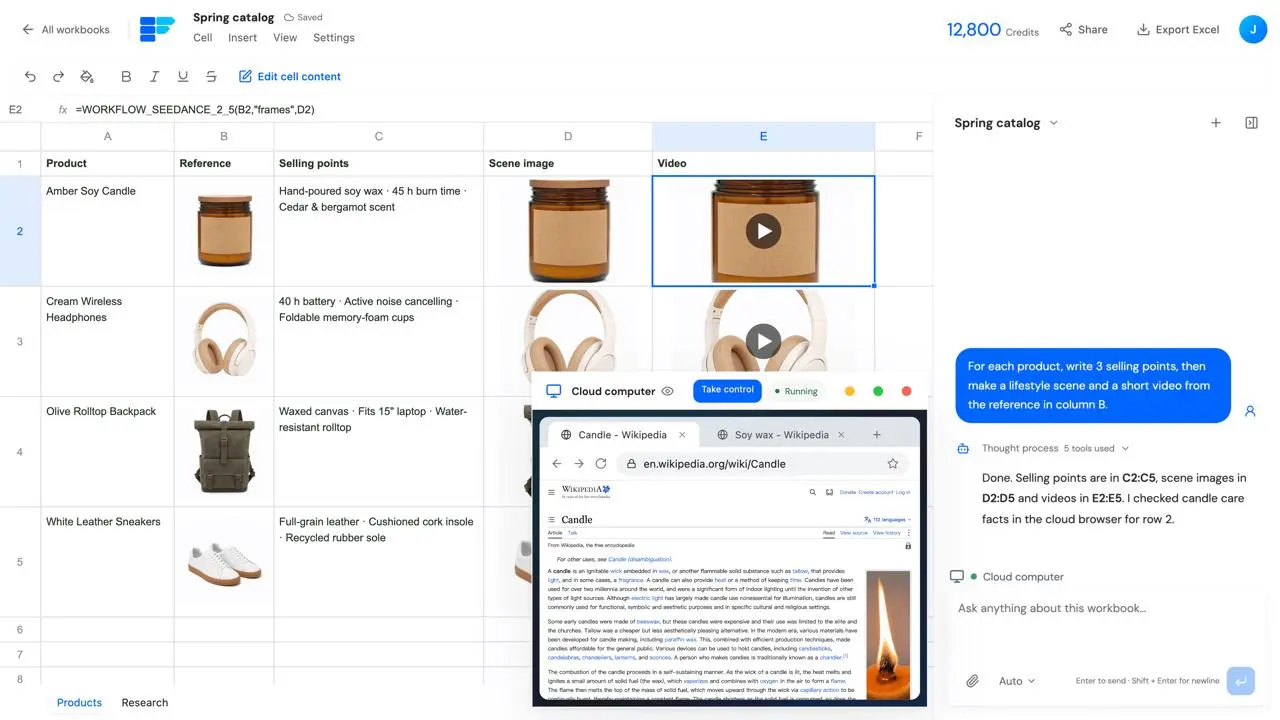
You still need to organize product information, identify selling points, write copy for different channels, explore several scene images, and choose a direction for a video. As the catalog grows, keeping each brief connected to the right output becomes more work.
Which reference produced this image? Which copy has been approved? Which products still need assets?
TableRun brings that information into one workbook. Each row can represent a product, with columns for source material, instructions, and outputs. You can also give a single product a larger area and compare several creative directions side by side.
With sources and results kept together, feedback has a clear place to live. Follow-up requests can refer to specific cells instead of requiring another search through chat history and folders.
What can TableRun do?
| Feature | How you can use it |
|---|---|
| Conversational spreadsheet editing | Organize information, fill cells, adjust layouts, and specify output locations |
| AI generation in cells | Set up text, image, and video tasks wherever you need them |
| Multimedia organization | Compare reference assets, instructions, and candidate outputs side by side |
| Copy and fill | Reuse configurations across more products or content ideas |
| Cloud computer and browser | Browse websites fully and take control when needed |
| Terminal and code execution | Write, compile, and run code to process files and implement custom logic |
| Computer Use | Observe interfaces, click, and type to perform desktop tasks |
| Templates | Reuse workbook layouts, instructions, and Workflow configurations |
Start in any cell without configuring an AI column first
In TableRun, you can add your source material first and decide where to generate content as you work.
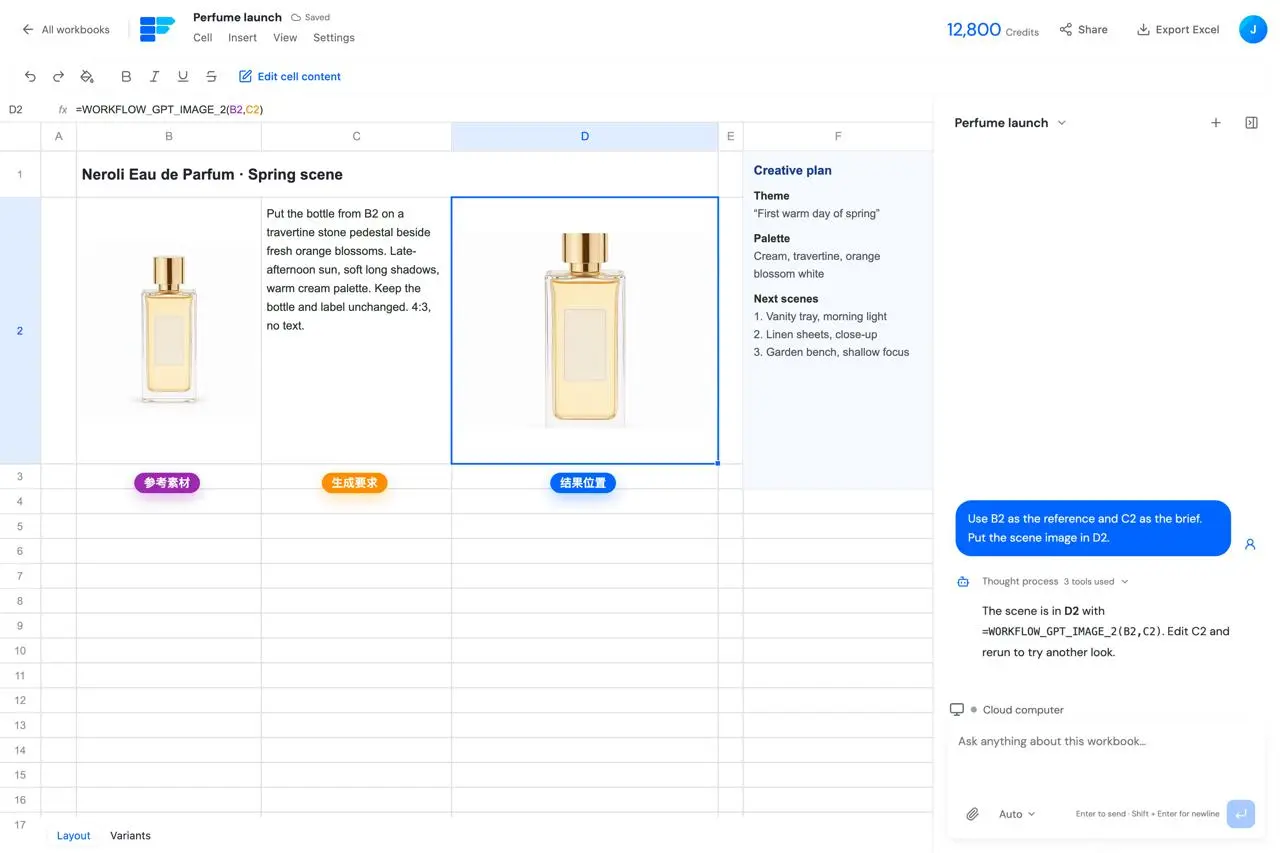
For example, put a product reference image in B2, a scene brief in C2, and an image Workflow in D2. Keep another area to the right for alternative headlines, posters, or video ideas.
Different areas can serve different tasks. You can gradually add information, adjust the layout, and connect cell references instead of designing the entire structure before you begin.
Ask the Agent to edit your sheet and set up tasks
Describe the outcome you want:
Organize these products by name, specifications, and selling points. Write an English title and five key benefits for each one. Flag missing information separately and place the results to the right of the product details.
You can also specify a visual task:
Use the product image in B2 to set up a bright home-interior scene for the first product. Keep the original image, brief, and result together so I can compare them.
The Agent can organize information, edit the workbook, and configure supported generation Workflows. Once you see the results, point out what needs changing and continue from the material already in the sheet.
Copy and fill a successful setup across more content
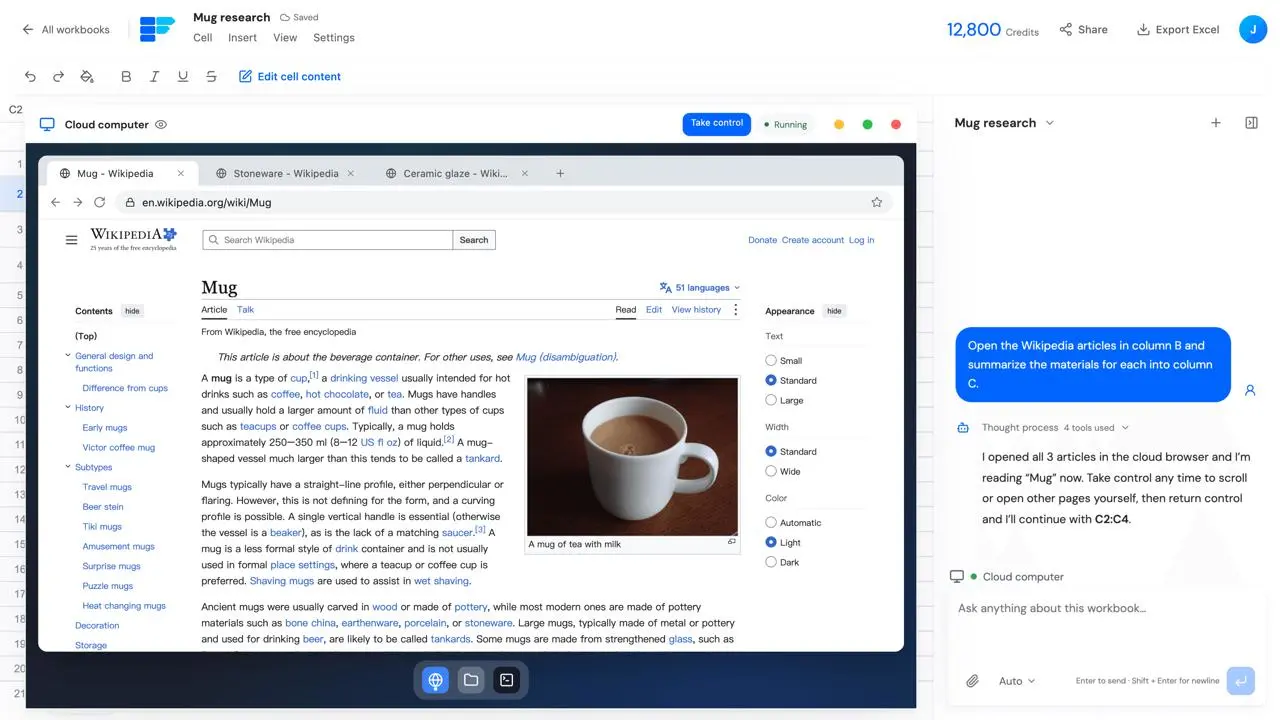
Try a configuration on one product, then copy or fill it to other products so each task uses the appropriate source information and reference image.
You reuse the method: where inputs come from, which instructions to apply, and where outputs belong. A setup you have already reviewed becomes a starting point for the next batch.
The spreadsheet also makes batch results easier to review. Compare candidates, select the items that need changes, and keep working on those specific outputs.
A cloud computer where the Agent can keep working
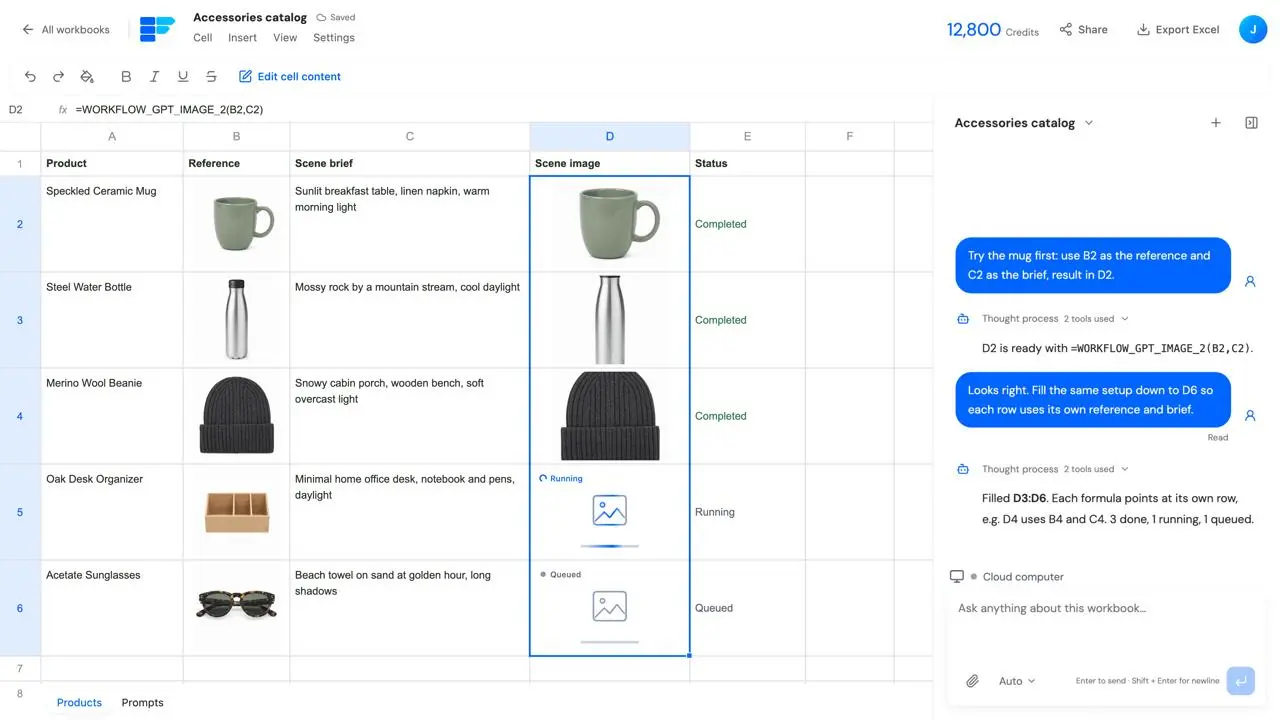
TableRun's cloud computer includes a browser, files, a terminal, and an editor. Alongside content generation, the Agent can browse websites, process files, develop code, and handle related steps in the same working environment.
You can watch what it is doing or take control and operate the computer yourself.
Browse complete websites and use online tools
The cloud browser supports full web browsing. The Agent can open pages, search, follow links, switch tabs, fill in fields, and upload or download files needed for a task.
This lets web research become a continuous process: gather public product information, compare several pages, download relevant files, and organize the findings in the workbook.
When a step needs you to sign in, complete verification, or make a choice yourself, take control of the browser. Return control to the Agent when you are ready to continue.
Write, compile, and run your own code
Some tasks call for custom processing logic.
You can ask the Agent to write scripts, compile programs, run code, inspect output, and debug the next step. Examples include:
- Cleaning, combining, and converting data according to your rules;
- Organizing files, renaming assets, and generating directories in batches;
- Building a small tool for calculations, filtering, or content processing;
- Creating a web page or interactive prototype and checking it in the browser.
The terminal and editor support development and execution, while the browser and desktop let you inspect the results. Describe the logic you want to implement, and the Agent can work through it in the cloud computer.
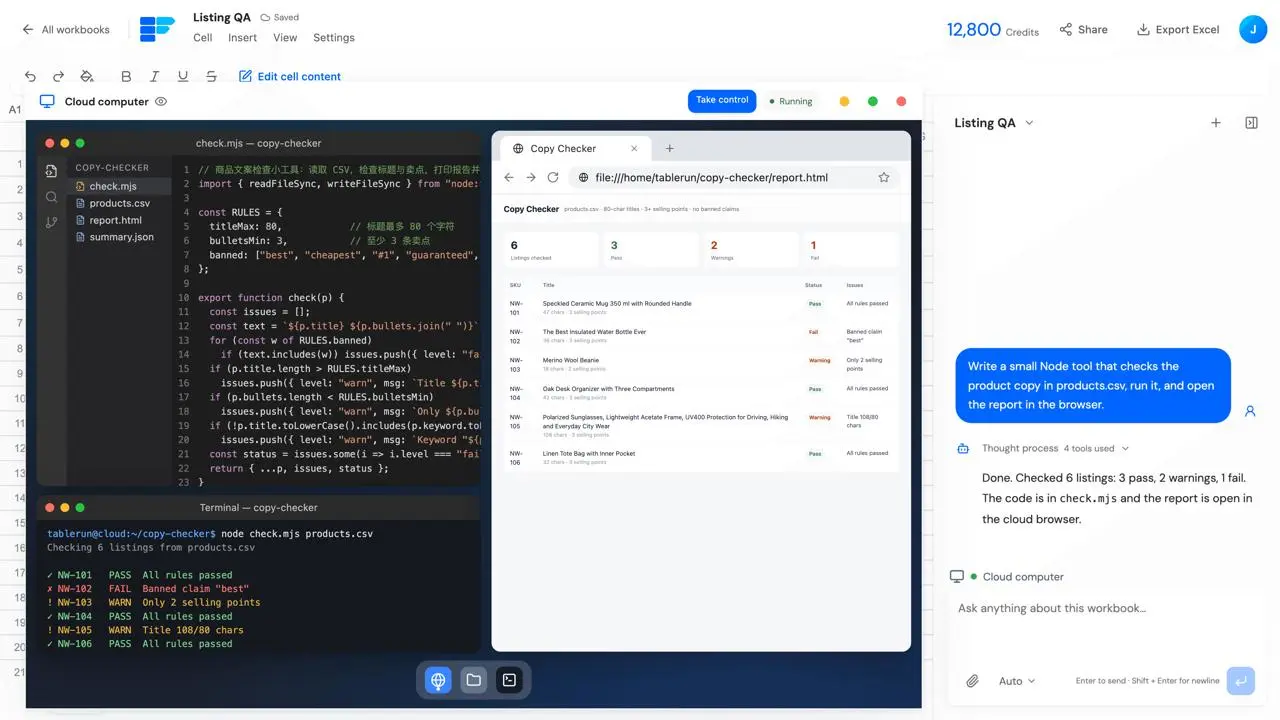
Computer Use connects code, browsing, and desktop actions
Computer Use lets the Agent observe an interface and operate applications through clicks, typing, and scrolling.
For a development task, it can edit code, compile or run it in the terminal, and open the result in the browser. For an information-processing task, it can combine web interactions, file management, and scripts to complete the next steps.
You can observe the process or take control of the desktop or terminal to edit code, adjust a page, or handle a step manually. Then hand control back to continue working with the Agent.
Example: turn product information into a batch of marketing assets
Suppose you need copy, scene images, and short videos for a collection of products. You can organize the work like this:
- Prepare the information. Add your product sheet and reference images. When more public information is needed, ask the Agent to research it through search or the cloud browser and record its sources.
- Try one product. Generate a headline, benefits, and a scene image, then compare the direction in the sheet.
- Refine the setup. Adjust the brief and keep the results you like. If the source data needs special processing, ask the Agent to write a script.
- Expand production. Fill the reviewed generation configuration across more products and generate their corresponding content.
- Review and deliver. Select results, revise individual items, and organize the assets for download or spreadsheet export.
The spreadsheet holds your inputs and outputs, the Agent advances the task, and the cloud computer provides a place to work with websites, files, and code.
Who is TableRun for?
Ecommerce operations teams can keep product information, selling points, images, and videos together, then reuse configurations across more products.
Marketing and brand teams can organize multichannel copy and visual assets by topic, compare creative directions, and record review notes.
Cross-border commerce teams can maintain product titles, descriptions, and marketing content in different languages and review them by product.
Product teams, operators, and developers can combine research, spreadsheets, the cloud computer, and code execution to organize information, build small tools, and produce deliverables.
Once a method works well, save it as a template to reuse the layout, instructions, and Workflow configurations in future tasks.
Who develops TableRun, and how do compute subscriptions work?
TableRun is developed by MOGU and Powered by WeShop AI.
Compute subscriptions are provided through the WeShop AI membership system, where you can view subscription plans and credit information.
TableRun will continue to evolve.
Start with a document, a reference image, or a concrete request. Let the Agent help you complete the first task, then apply the method you have reviewed to more content.
TableRun · The AI content production spreadsheet