For an activity launch, class promotion or content series, give the Agent your brief, existing images and references. Develop directions, scripts and shot concepts, then generate, compare and revise posters, banners, social content and short videos in one workbook.
Describe which shot to change, which image to keep and which version each channel needs.
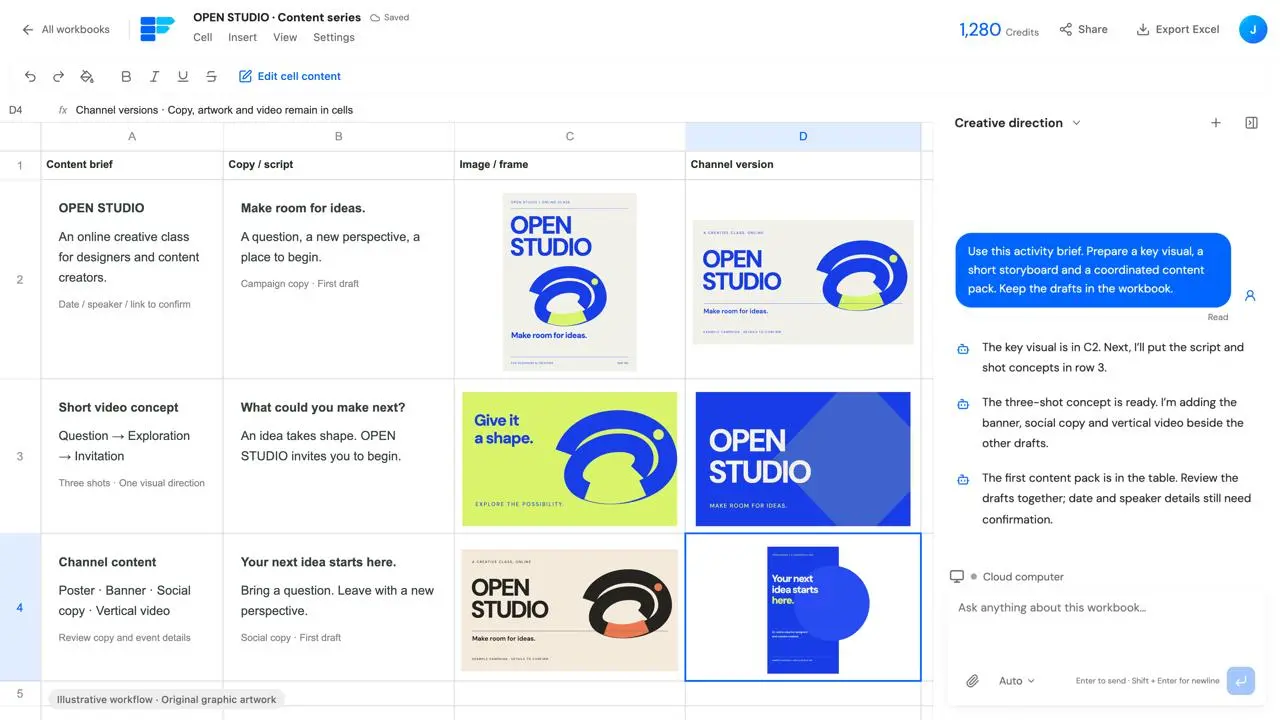
An OPEN STUDIO example showing briefs, scripts, images and channel versions in cells. Illustrative activity and assets.
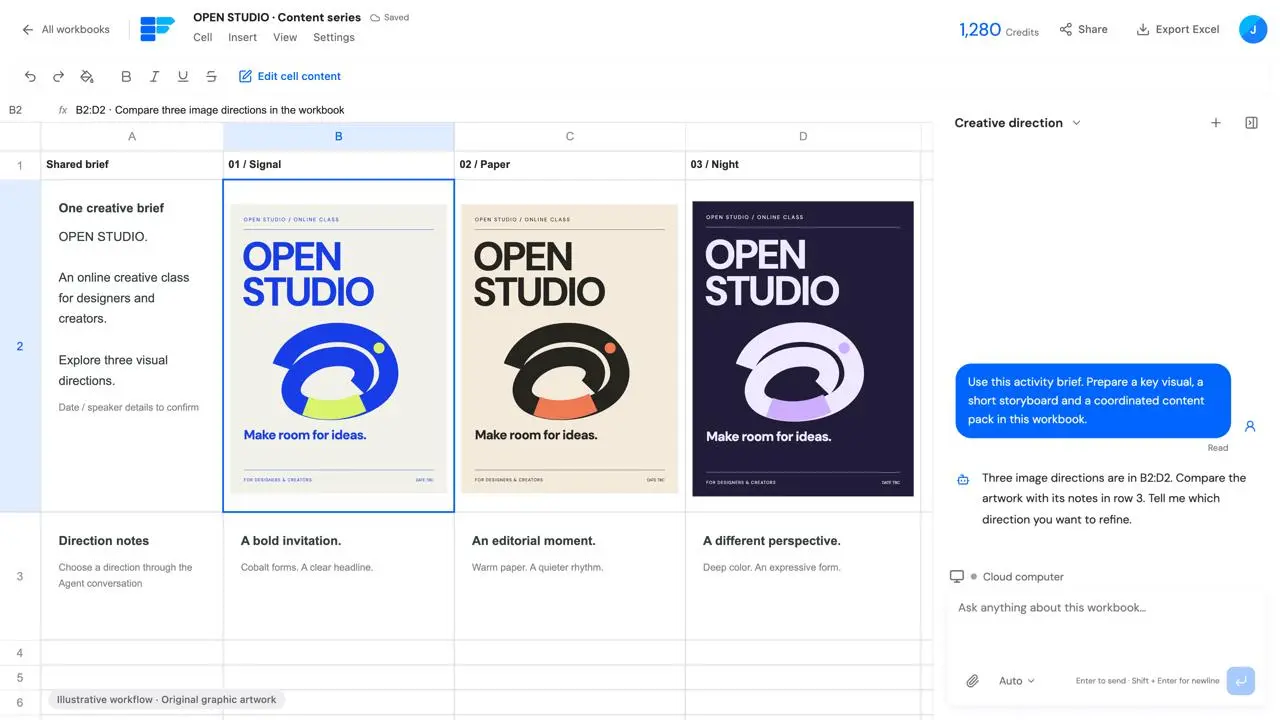
Start with a few directions you can actually compare.
When the brief is simply “make a campaign,” start with the audience, purpose, tone and information to retain. Ask the Agent for different copy and visual directions, compare them in the sheet and choose one to develop.
01
Make a loose idea concrete enough to discuss.
Your brief to the Agent
For an online class aimed at designers and creators, compare a bold cobalt direction, a quieter paper layout and an expressive dark palette before choosing the direction that fits.
Example prompt
Here is the brief for OPEN STUDIO, an online creative class for designers and content creators. Give me three distinct visual directions, each with a core line of copy and a key visual. Put them in the workbook for comparison. Mark the date, speaker and registration link as unconfirmed.
The work and its output
Directions, images and notes occupy cells; choose a version to refine through conversation.
Deliverable
Three creative directions with core copy, key visuals and notes.
Scripts & shot concepts
See each shot before making the video.
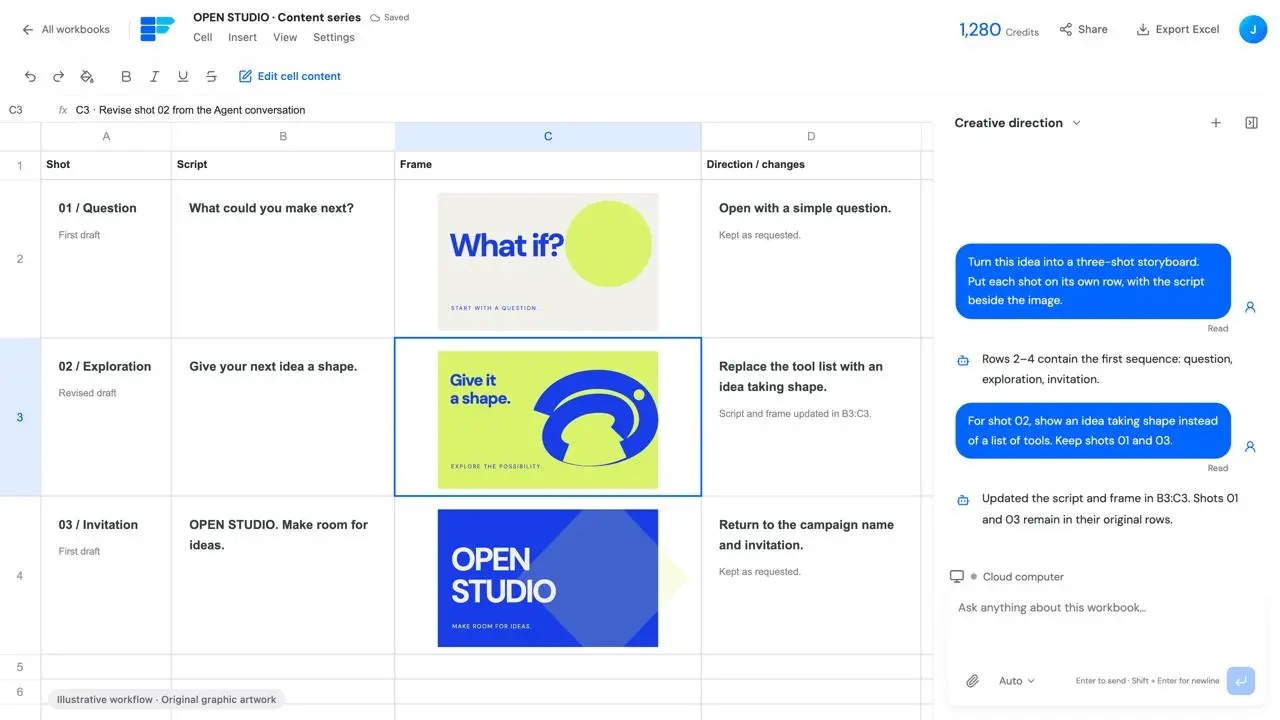
Break an activity introduction into an opening, exploration and invitation. Keep each shot’s script, frame and notes in the same row. Ask the Agent to revise the relevant cells while keeping the other shots, then use the reviewed script and images to continue making the video.
Break down the story
Ask the Agent to organize the script by shot and explain what each shot conveys.
Keep script and frame together
Compare the text and generated frame in each row to catch mismatches.
Revise the shot that needs work
Name the row or shot to change and keep the parts you want before continuing.
Only the script and frame in B3:C3 change; the first and third shots stay the same.
Tell the Agent what to change in the first draft.
Use the original image in the sheet as the reference. Describe what to keep and what to change, then place the new version beside it for comparison.
01
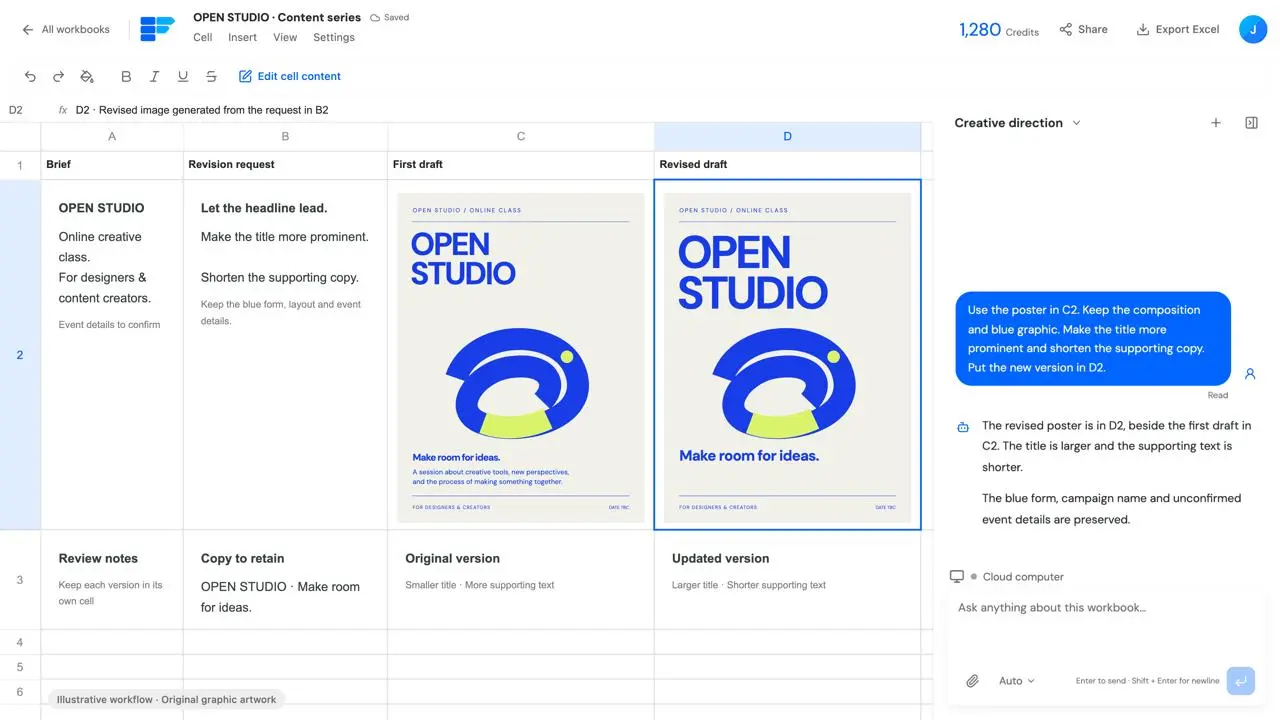
A stronger headline. Less supporting copy.
Your brief to the Agent
The main graphic works, but the title needs more presence. Keep the blue form and activity details, enlarge the title and shorten the text, then put the revised image in the adjacent cell.
Example prompt
Use the poster in C2. Keep the composition and blue graphic, make the title more prominent and shorten the supporting copy. Retain the activity details. Put the new version in D2 and keep the original in C2.
The work and its output
C2 holds the first draft and D2 the revision; requests and version notes stay in the table.
Deliverable
The first and revised drafts remain side by side in the workbook for further review.
One theme, prepared for each content placement.
Once the theme is chosen, prepare posters, banners, social copy with images and a vertical short video. Keep each placement’s copy, visual and format requirements in the table for review. These original examples illustrate output formats for one fictional activity.
OPEN STUDIO is a fictional activity. Original graphic and layout examples; date, speaker and registration details remain to confirm.
01
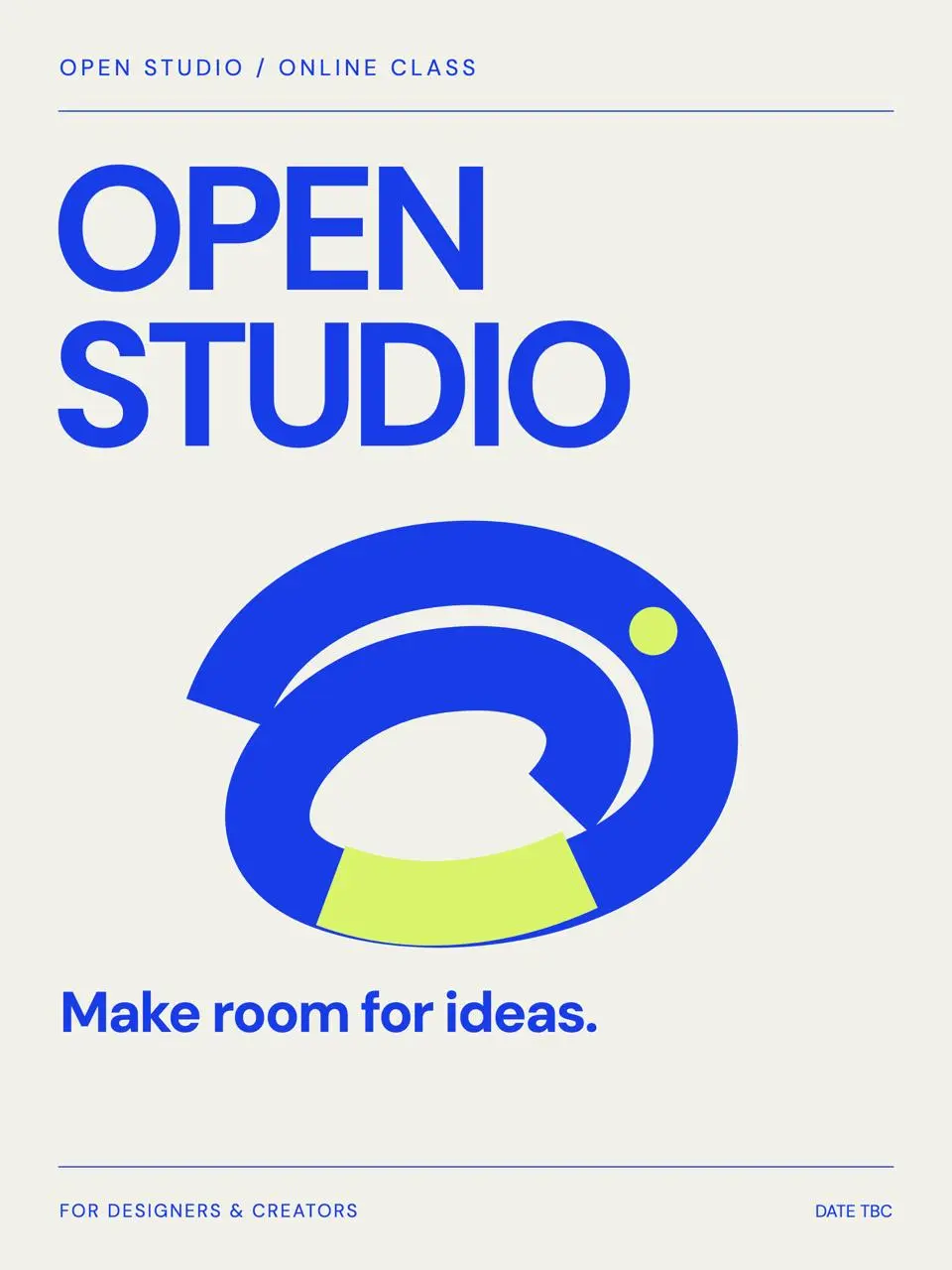
Campaign poster
Carry the activity name, central message and confirmed details, providing a reference for later versions.
Deliverable
Portrait campaign key visual.
OPEN STUDIO is a fictional activity. Original graphic and layout examples; date, speaker and registration details remain to confirm.
02
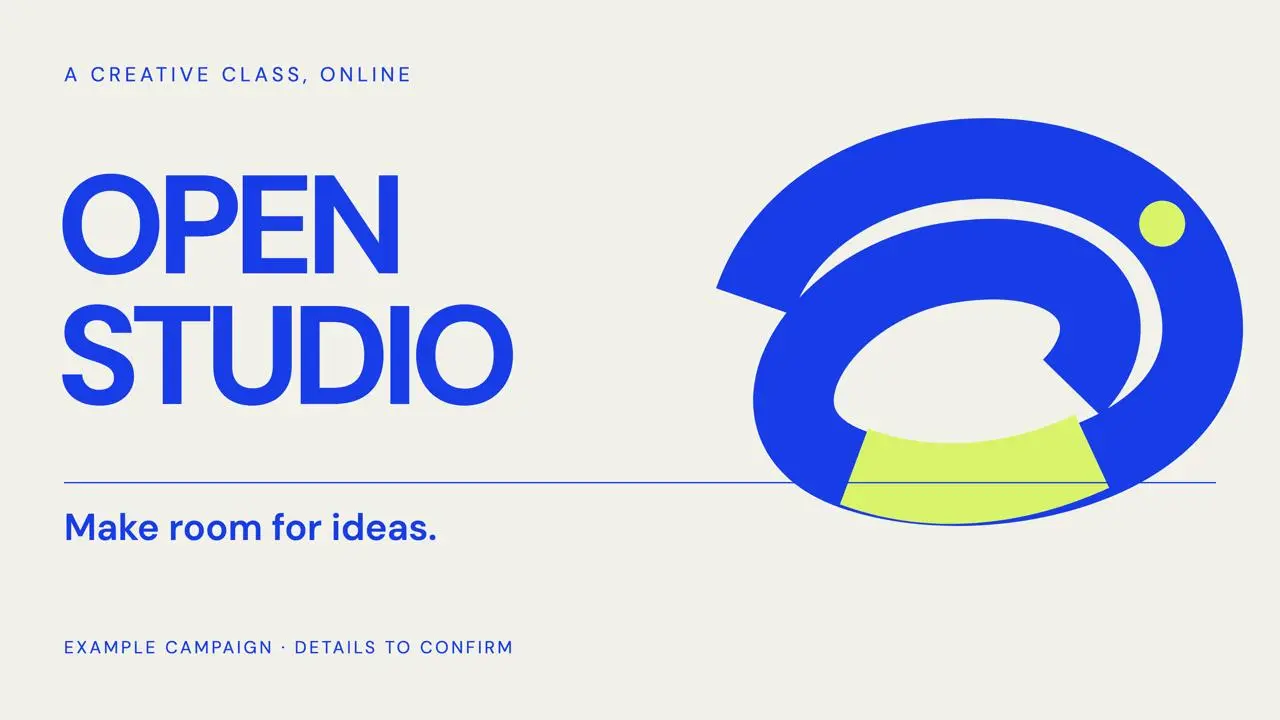
Landscape banner
Rearrange the headline and visual for a landscape placement and check that the crop retains the message.
Deliverable
A creative image for a landscape placement.
OPEN STUDIO is a fictional activity. Original graphic and layout examples; date, speaker and registration details remain to confirm.
03
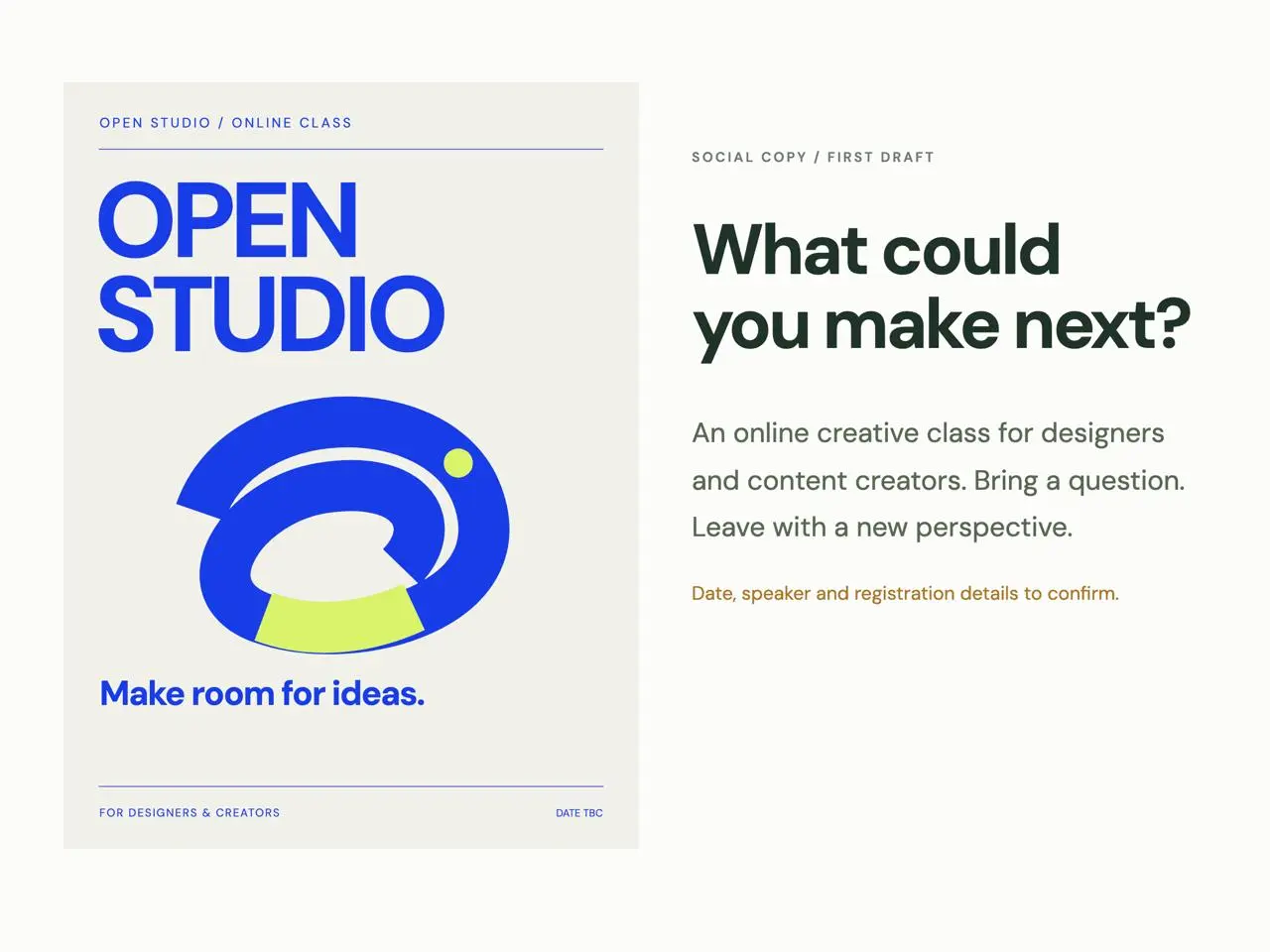
Social image & copy
Prepare the image and its post copy together, checking the theme, tone and unconfirmed details in the sheet.
Deliverable
An image with its accompanying copy draft.
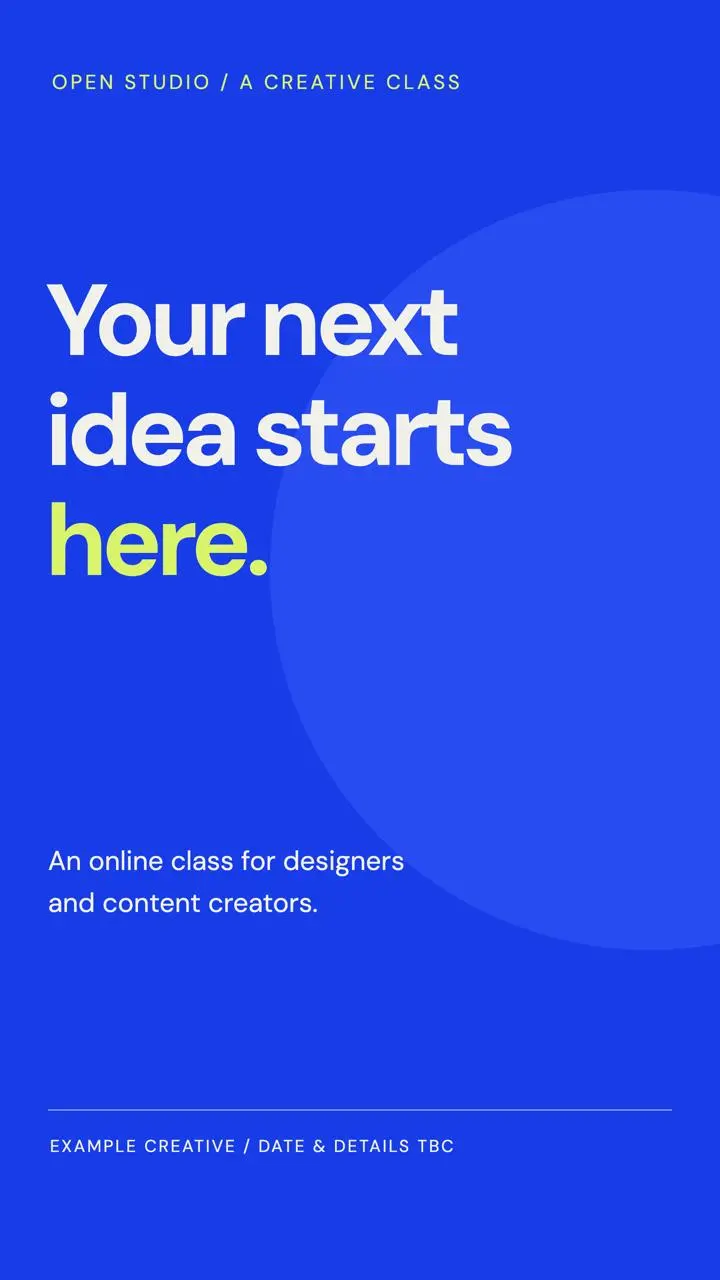
Original motion graphics illustrating a video output format; not a live generation result.
04
Vertical short video
Continue from the reviewed script and images to prepare video, checking the opening, core message and closing invitation.
Deliverable
A 9:16 motion-poster sample; original code-authored graphics, without audio.
Develop a series from the direction you chose.
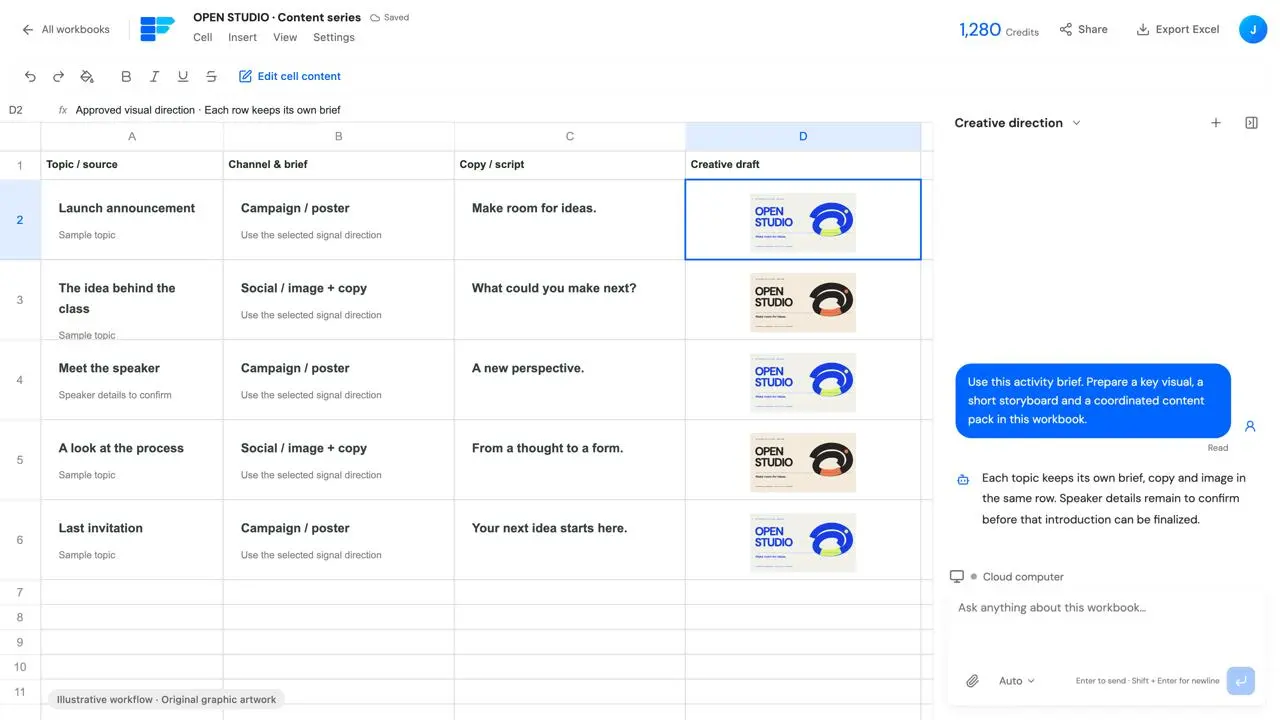
A class launch needs more than one poster. Organize an announcement, concept introduction, speaker introduction, process story and final invitation as topics. Keep each row’s brief, copy and image together for the Agent to develop.
01
Extend one direction across different topics.
Your brief to the Agent
Carry the selected visual style into new topics while writing a distinct message for each. Mark rows with missing information so they can be completed later.
Example prompt
Use the chosen OPEN STUDIO direction for five topics: launch announcement, class concept, speaker introduction, creative process and final invitation. Keep each topic’s channel, copy and image requirements in one row, then develop them one by one. Mark missing speaker information as unconfirmed.
The work and its output
Each row retains its topic, channel, copy and image; speaker details remain unconfirmed.
Deliverable
A series table with each topic’s brief, copy and image version.
Connect to your existing platforms
Carry reviewed content into the platforms you already use.
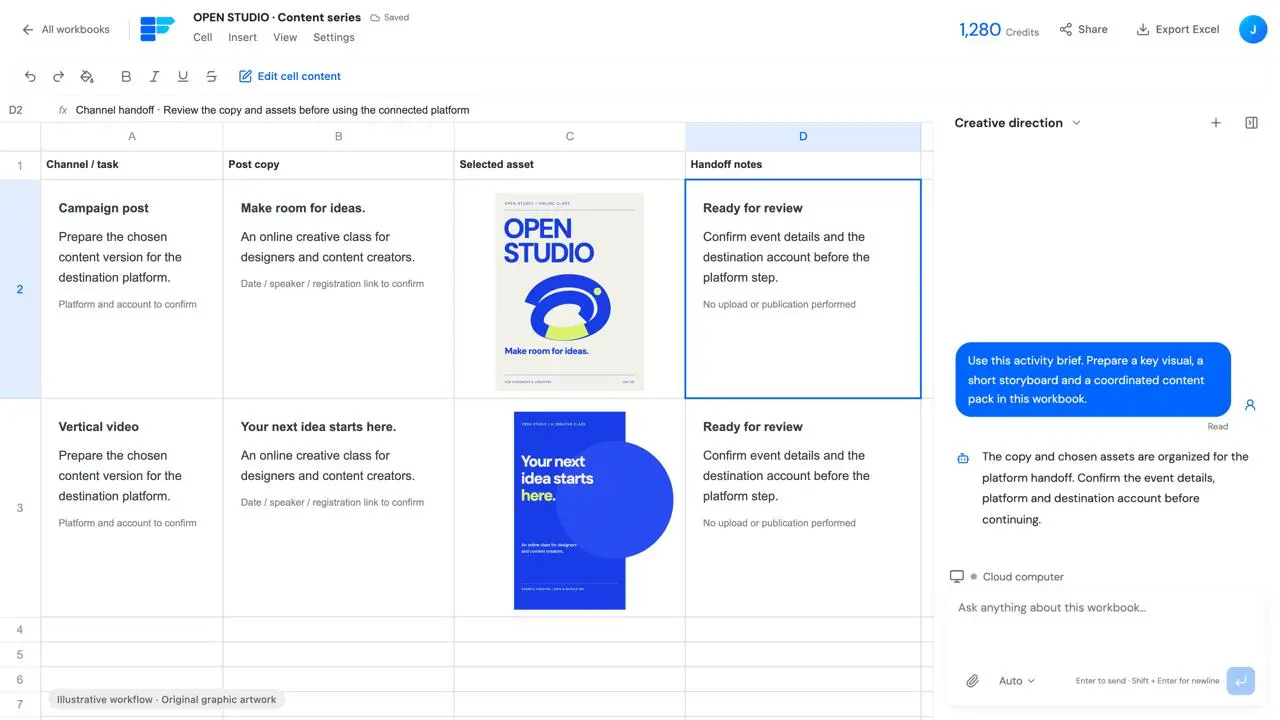
Organize the chosen assets and post copy in the workbook, then ask the Agent to open the specified platform in the cloud computer to prepare uploads and content entry. Take over for sign-in or verification when needed, then return control. Uploading, saving a draft or publishing follows your requested scope and the platform’s actual permissions.
Choose the version to use
Organize the selected image, video, title and copy in the same sheet.
Use the existing account and platform
Open the specified platform in the cloud computer and take over when sign-in or verification requires you.
Continue within the requested scope
Check activity details, the destination account and the content version before the requested next step.
Handoff preparation example; no real platform connection, upload or publication was performed.
Before you begin
Do I need a complete creative plan first?
No. Start with the goal, audience, channel, existing assets and information to retain. Ask the Agent to develop directions, keeping unconfirmed dates, speakers, prices or registration links clearly marked.
Where do I revise the script and shot concepts?
In the workbook. Keep each shot’s script, frame and notes in its cells, then tell the Agent which row or shot to change. There is no separate storyboard editor in this workflow.
Can I refine an existing image?
Use the existing image as a reference and describe the subject, style or information to keep along with the requested changes. Place the new version in an adjacent cell for comparison. Generation parameters and costs depend on the actual task.
Are these assets a real customer case study?
No. OPEN STUDIO is fictional. The original images, shot concepts and motion poster illustrate a workflow and output formats; they are not evidence of a live generation task or platform publication.
Can the Agent upload content to a platform?
Ask the Agent to use the specified platform and account in the cloud computer, preparing or uploading content as its interface and permissions allow. Sign-in or verification may require takeover; saving drafts and publishing follow your explicit task scope.
Start your next content task with a brief.
Tell the Agent about your audience, channels, existing assets and intended content, and bring the first draft into your workbook.