
Write one action you can finish
Explore the template
Preparing template preview…
Enter each action in Task and add a Due value if it has a real deadline. Replace a broad note like “move” with a next action such as “confirm the elevator booking.” Split actions that have different owners or due dates into separate rows.
Mark completion in the input column
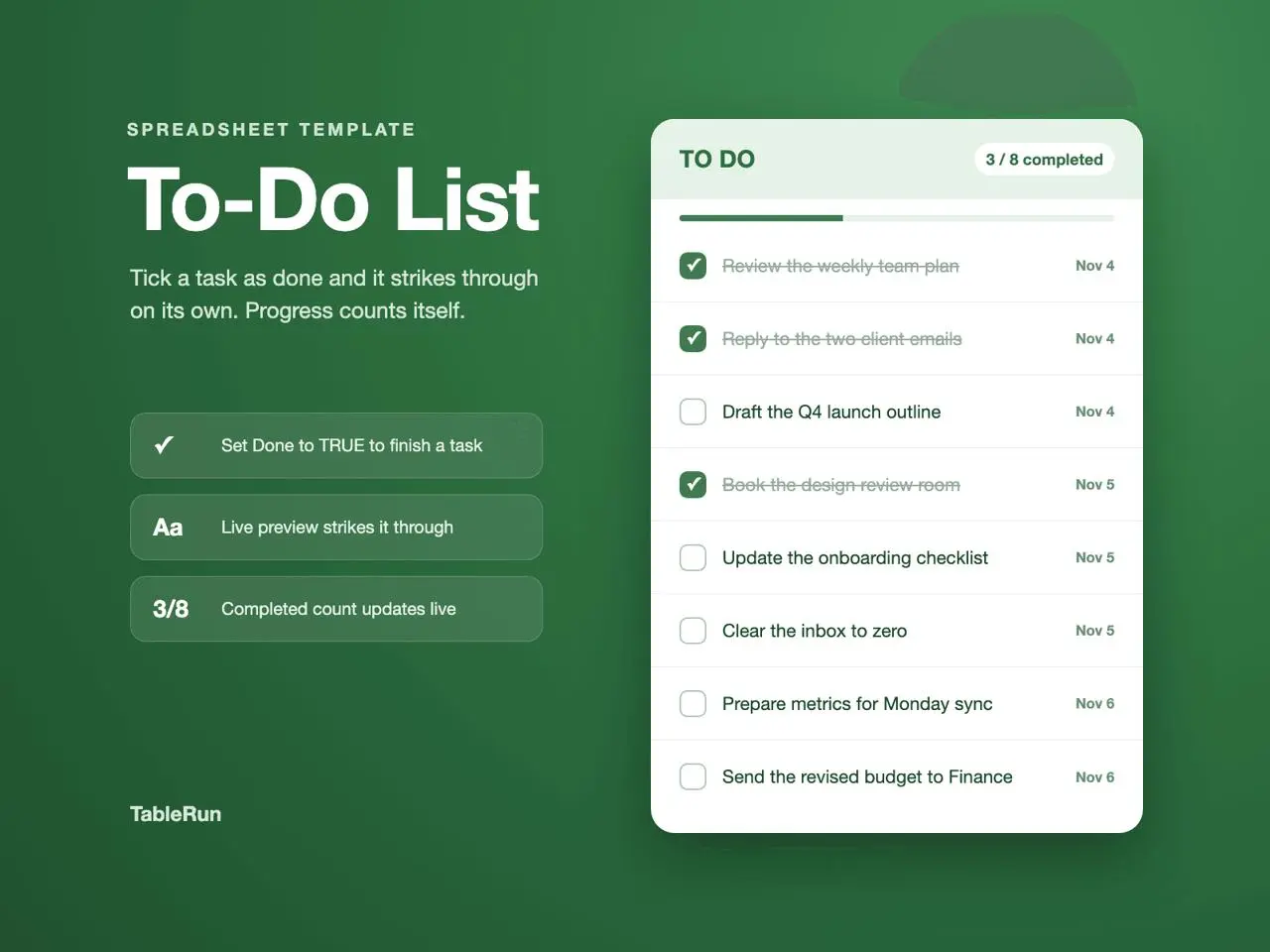
Set Done to TRUE to mark an item complete. The Live preview reflects the completed state and the sheet shows a completion count. If the task reopens, clear the completion flag instead of typing over the preview output.
Review outstanding items at a regular time
At the end of the day, look for unfinished work due soon. For a row that keeps getting moved, check whether it needs a smaller first action or a real new date. This keeps the list usable as an action queue rather than a collection of reminders you stop reading.
Turn a vague project into a usable queue
For a move, replace “sort out the apartment” with actions such as “confirm elevator booking,” “label kitchen boxes” and “photograph the meter reading.” Give the first item the building's deadline and leave the others undated until they have a genuine due date. If a task cannot start until someone replies, write the action you control, such as “follow up with building management on Wednesday.”
After finishing one action, mark its Done cell and look for the changed state in Live preview. Reopen a task if a promised confirmation never arrived. For a recurring action that has been completed once, give the next occurrence a new row or start a new copy of the list, depending on whether you need the earlier completion record.
Fix a completion count that surprises you
Check whether the task text is in the Task column and the completion value is in Done. A check mark typed into the notes or preview is a visual mark only. If an item seems absent, look for a task row whose text was overwritten or whose input landed outside the prepared area. Preserve the display formulas and make the correction at the input.